This tutorial creates up to three monitors on the UptiLink Basic plan, organizes them into a group, associates monitoring with the correct Wi-Fi network, and enables Android device offline alerts and recovery notifications. UptiLink is Android-native, so no dedicated monitoring server is required.
Before you start
Connect your Android device to the local Wi-Fi network that contains the equipment you want to monitor. That might be a home network, homelab, consultant-managed site, or small IT shop. During setup, Android may ask for permissions that allow UptiLink to recognize the current Wi-Fi network and present notifications.
UptiLink performs reachability checks from the Android device. The phone or tablet must therefore be on the relevant network and able to reach each target. A firewall, client-isolation setting, sleeping device, or device configured not to answer ping can affect results.
Start the UptiLink setup wizard
Open UptiLink for the first time and choose to begin setup. The wizard introduces the small number of choices needed to create a useful Android network monitor without deploying a container, virtual machine, or dedicated monitoring server.
Keep the phone connected to the Wi-Fi network you want to scan throughout the initial workflow.
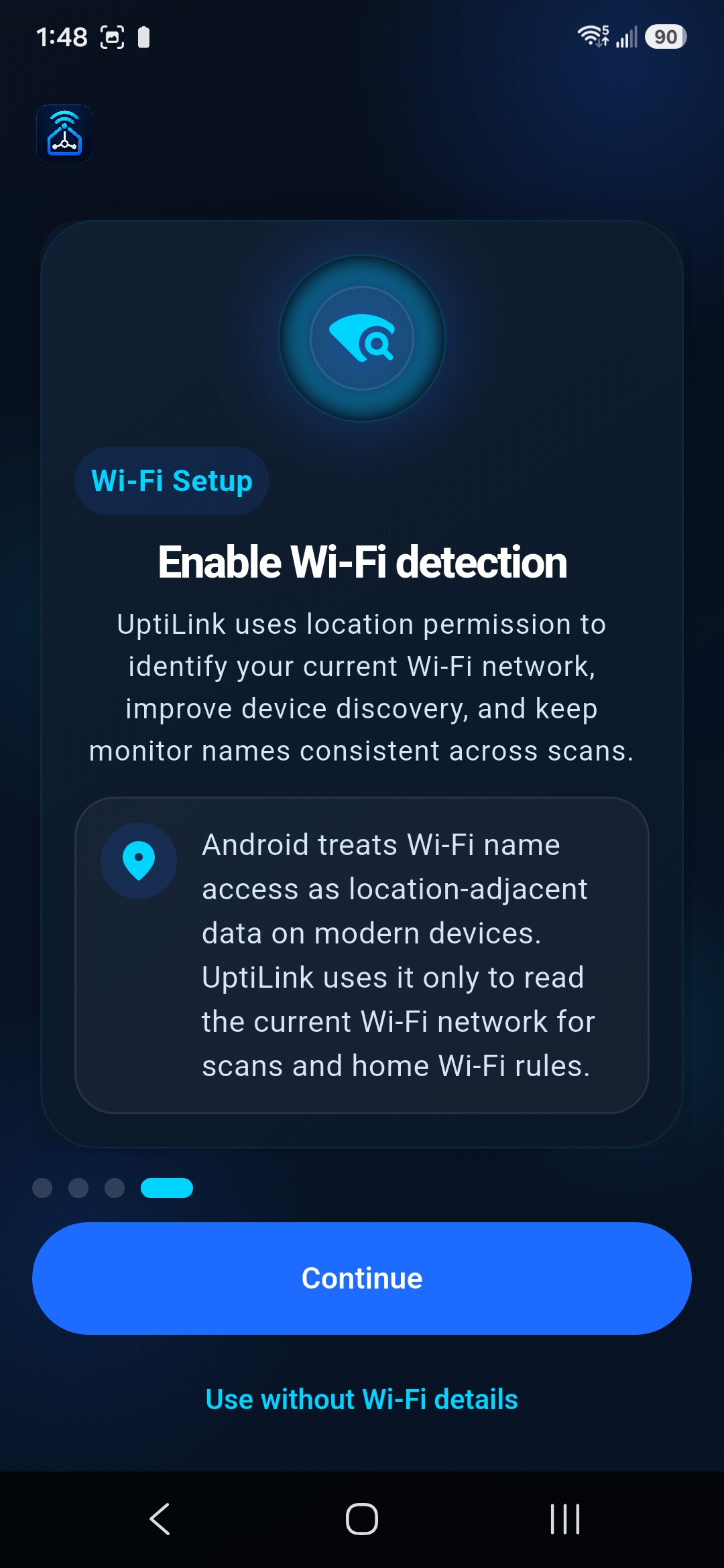
Enable Wi-Fi detection
Enable Wi-Fi detection so UptiLink can understand when the Android device is connected to the network associated with a monitor group. Wi-Fi device monitoring prevents a predictable false alarm: every local device appearing offline simply because you left home or the office with your phone.
The network association is especially useful when you monitor network devices from Android across more than one location.
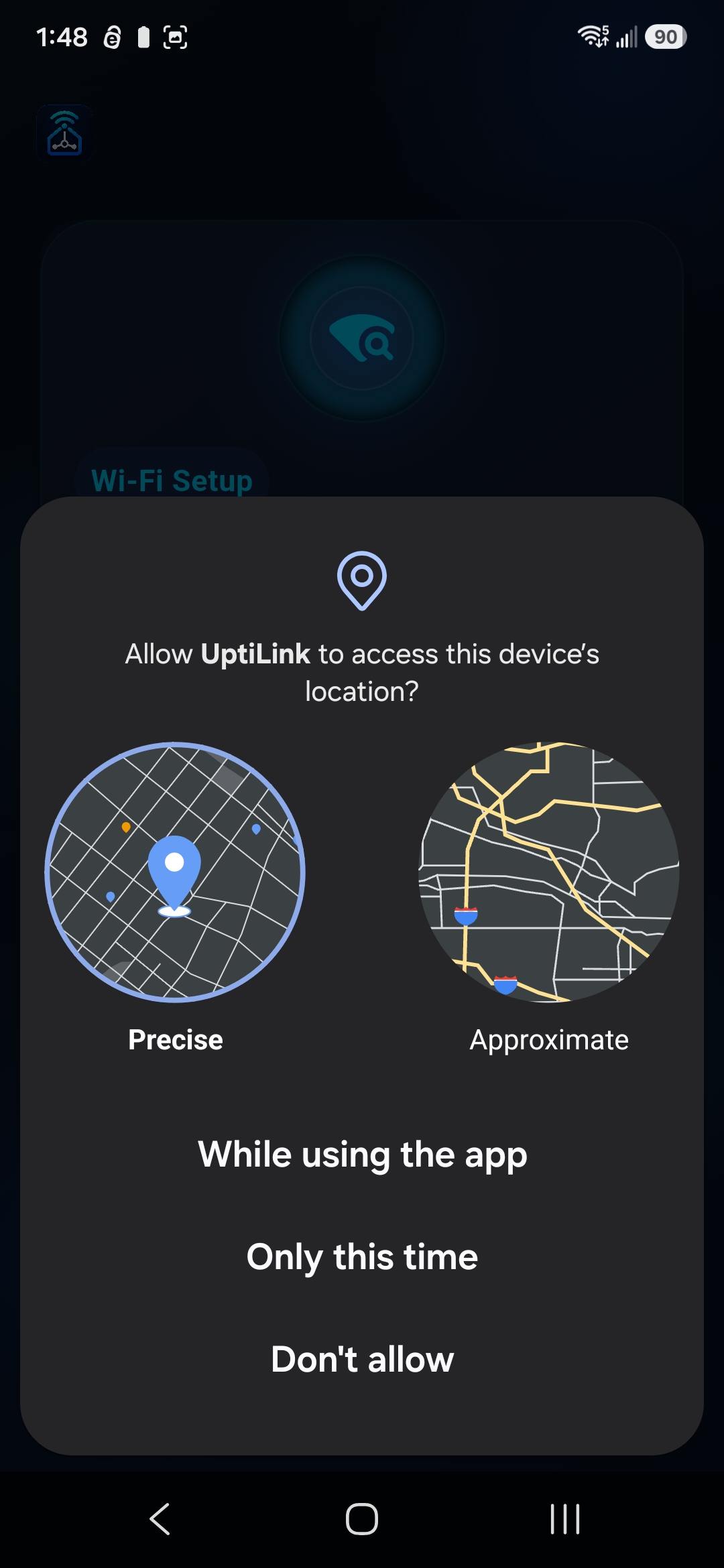
Grant the Android permission for Wi-Fi awareness
Follow the Android prompt and grant the requested permission. Android controls access to identifying Wi-Fi information through operating-system permissions that can include location access. UptiLink needs that network awareness to determine whether Wi-Fi-specific monitors should run.
If you decline, you can revisit the app permissions in Android Settings, but Wi-Fi-aware behavior may not work as intended until access is available.
Choose manual monitor creation or scan the LAN
UptiLink offers two paths. Add a monitor manually when you already know the device address, or use the LAN device scanner to discover responding systems on the current subnet. Manual creation is precise; the local network scanner is convenient when you are inventorying a new network.
A scan identifies reachable addresses, not necessarily every device or service. Network isolation and device security settings can limit discovery.
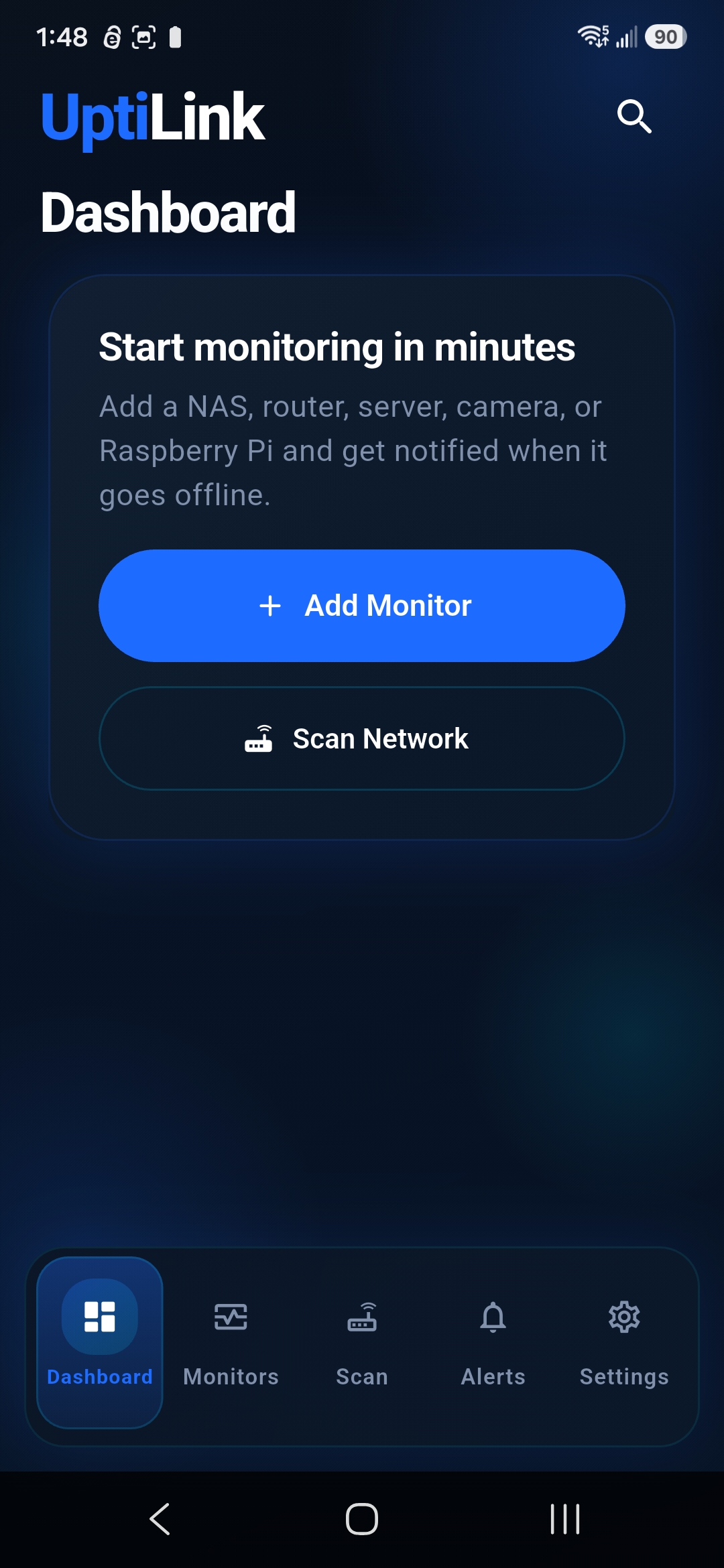
Start the local network scan
Review the network range shown by UptiLink and start scanning. The app checks local addresses for reachable devices, providing a practical starting point for home network monitoring or a quick small business network inventory.
Stay on the selected Wi-Fi network while the scan runs. Moving to cellular data or another access point with an isolated subnet can interrupt useful discovery.
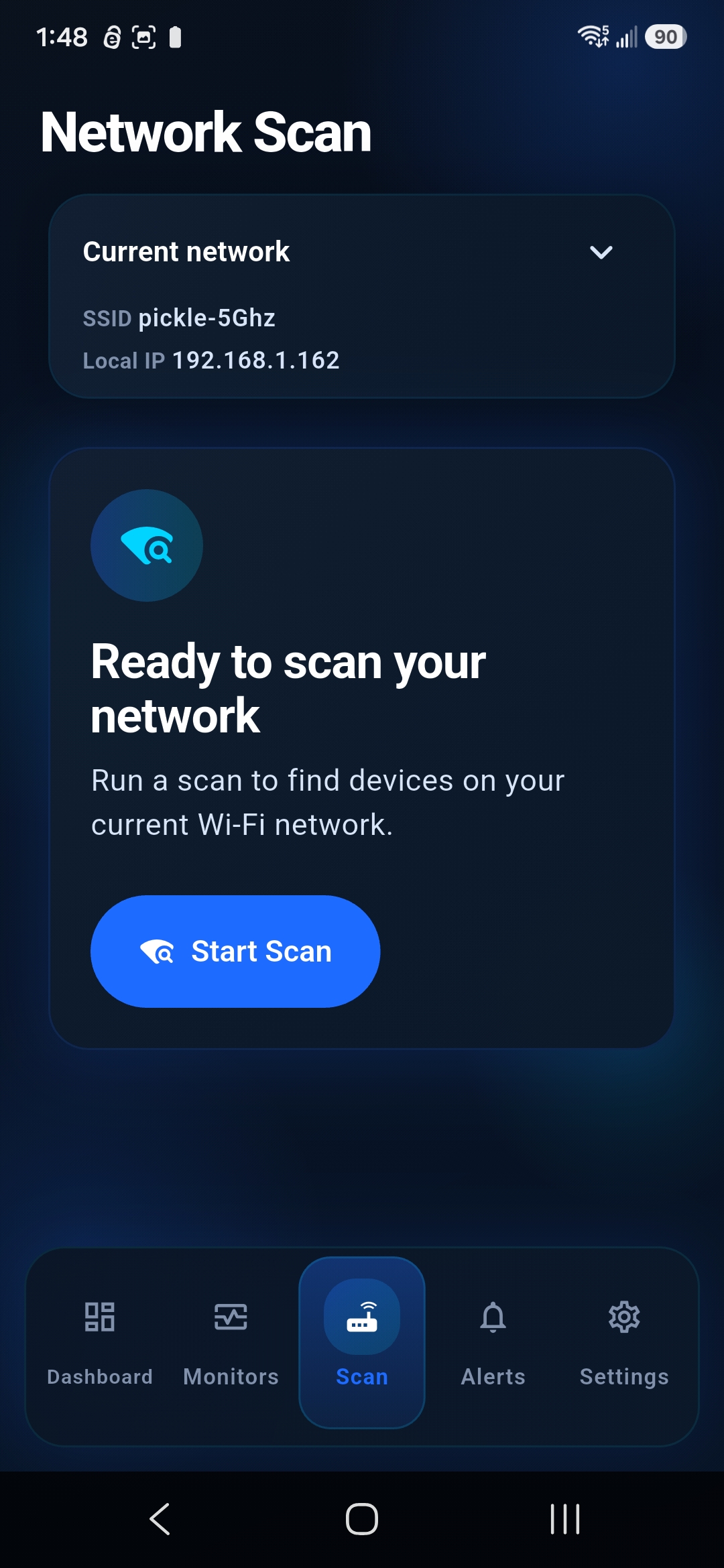
Let the network scan finish
Allow the scan to complete so UptiLink has time to find responding devices across the range. Results may include a router, NAS, Raspberry Pi, server, printer, access point, switch, or smart-home hub.
Some devices do not reply to reachability checks, and recognizable names are not guaranteed. Compare IP and hardware information with your router or DHCP records before selecting an unfamiliar result.
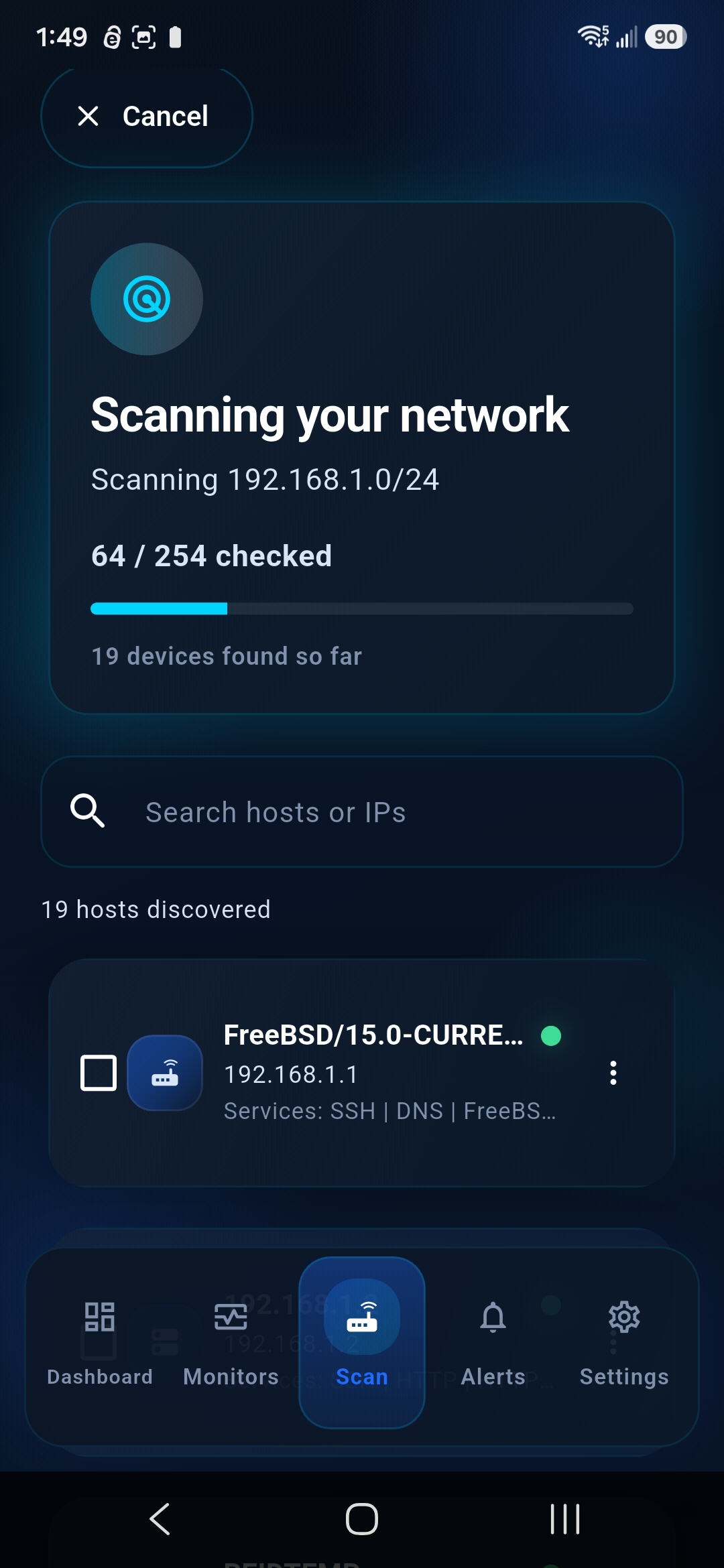
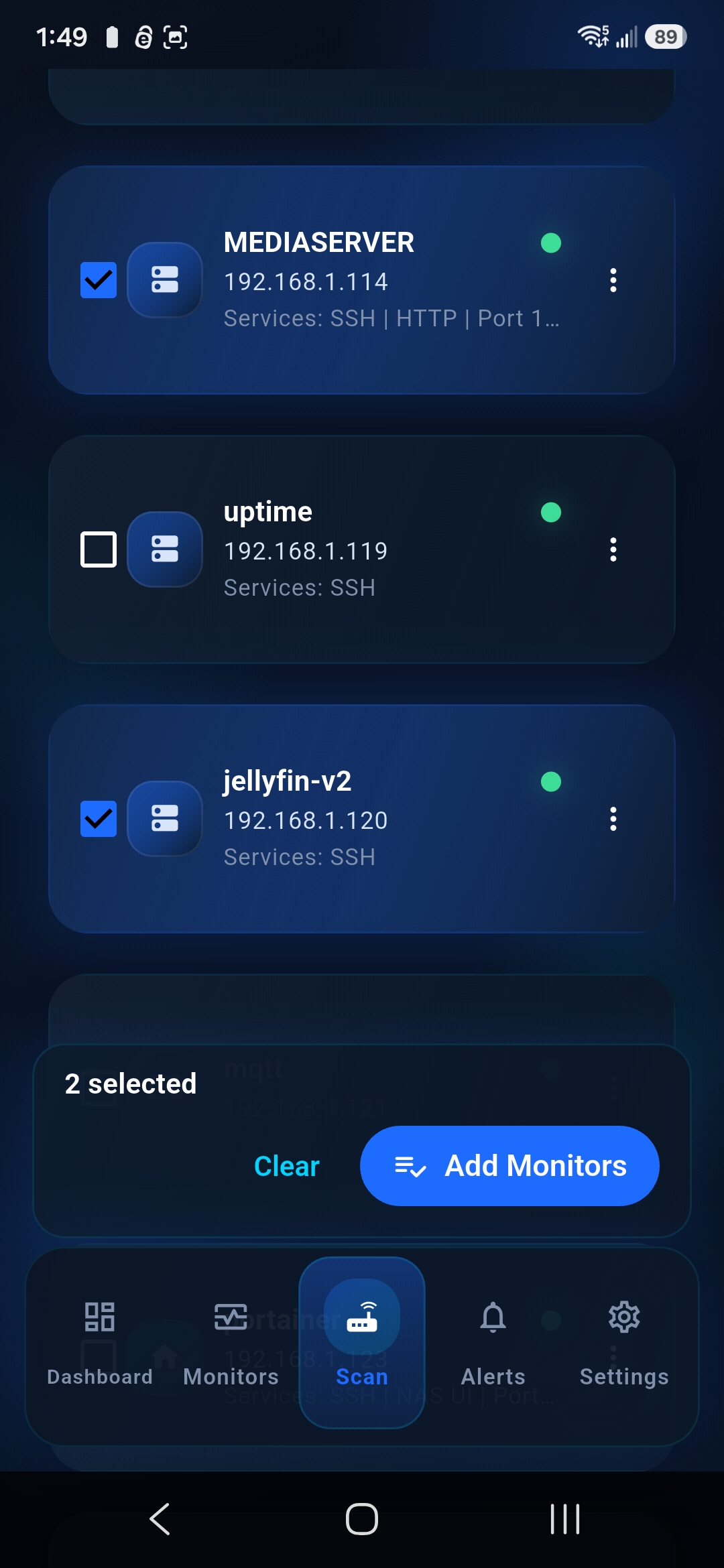
Select up to three monitors on the Basic plan
Choose the devices that matter most. The Basic plan allows up to three monitors, which is enough to begin with a router, NAS, and a key server or Raspberry Pi. Select only devices you recognize, then continue.
Good first targets are equipment expected to remain powered on. Monitoring a laptop or phone that sleeps frequently will create less meaningful availability history.
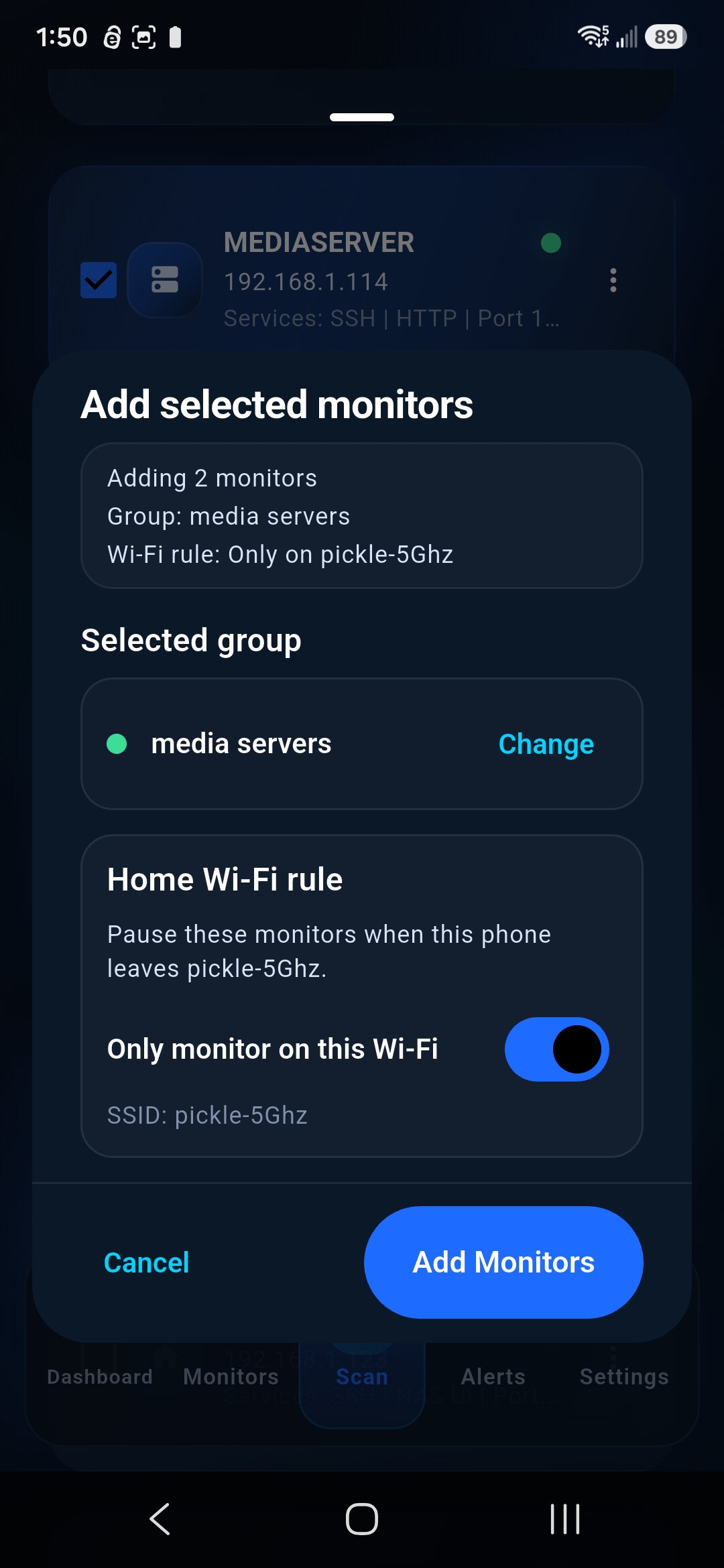
Create a group and set its Wi-Fi network
Name the group for the location or purpose, such as “Home Lab,” “Office,” or “Network Core.” Associate it with the current Wi-Fi network so those monitors run in the correct local context.
Groups keep related devices organized and make Wi-Fi-aware monitoring easier to understand. A consultant can separate client locations, while an advanced home user might distinguish network infrastructure from smart-home equipment.
Enable reliable background alerts
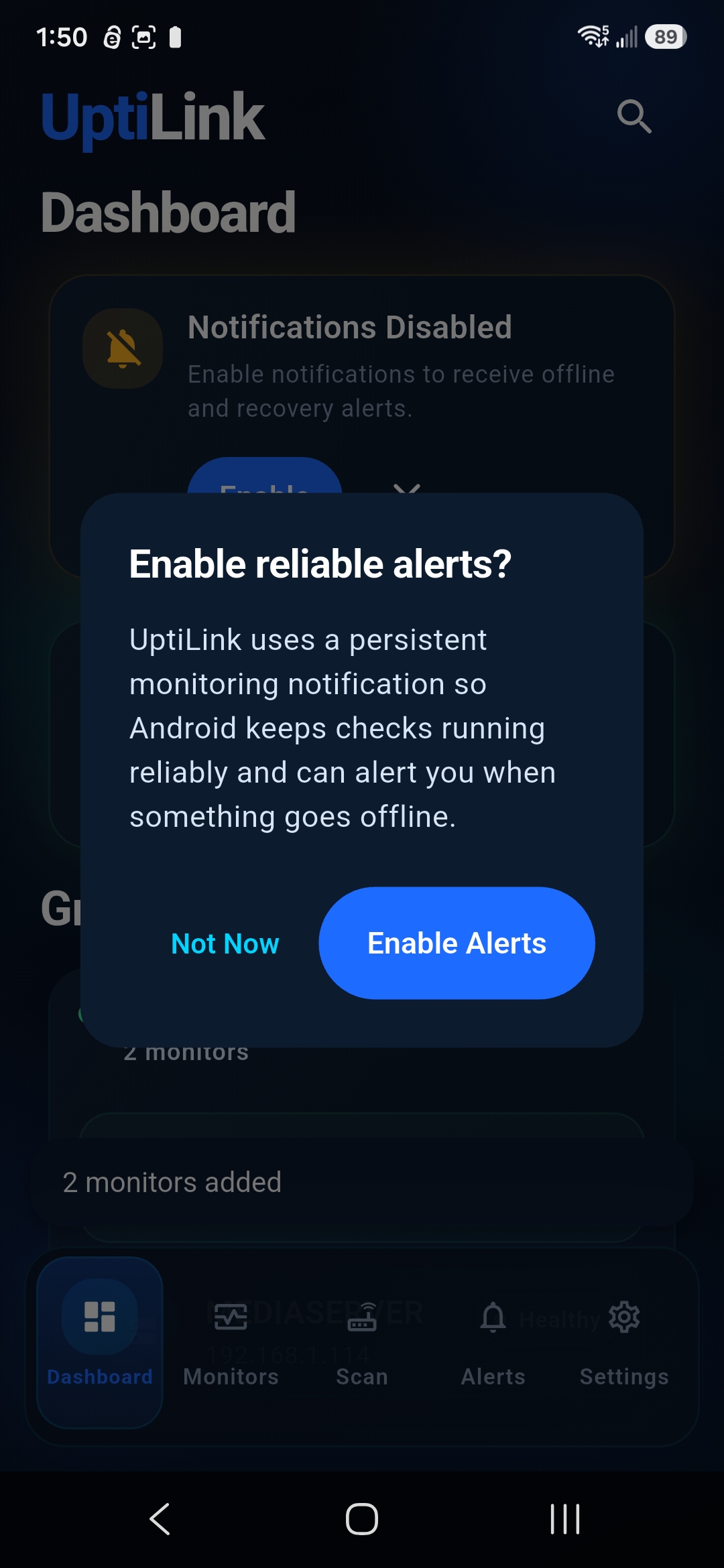
Enable reliable alerts when you want UptiLink to continue checking and notify you about changes while the app is not in the foreground. This supports device offline alerts, recovery notices, and useful network outage notifications on the Android device.
Android power management varies by manufacturer. Follow the in-app guidance so the system does not unnecessarily restrict background work.
Accept Android notification permissions
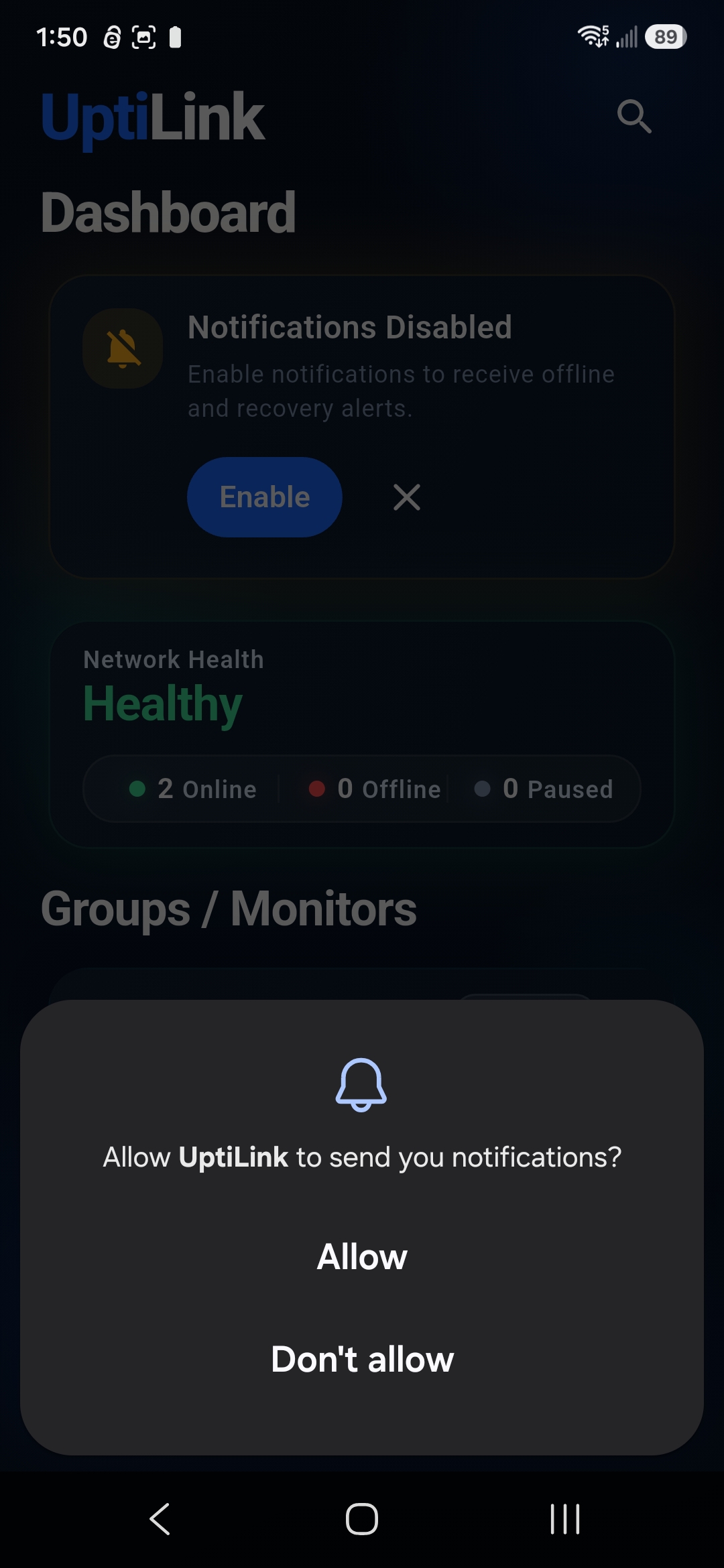
When Android asks whether UptiLink may send notifications, choose Allow if you want outage and recovery alerts. This is separate from the earlier Wi-Fi-awareness permission and controls whether notifications can appear.
If you decline accidentally, open Android Settings, find UptiLink, and enable notifications later.
Finish setup and review the dashboard
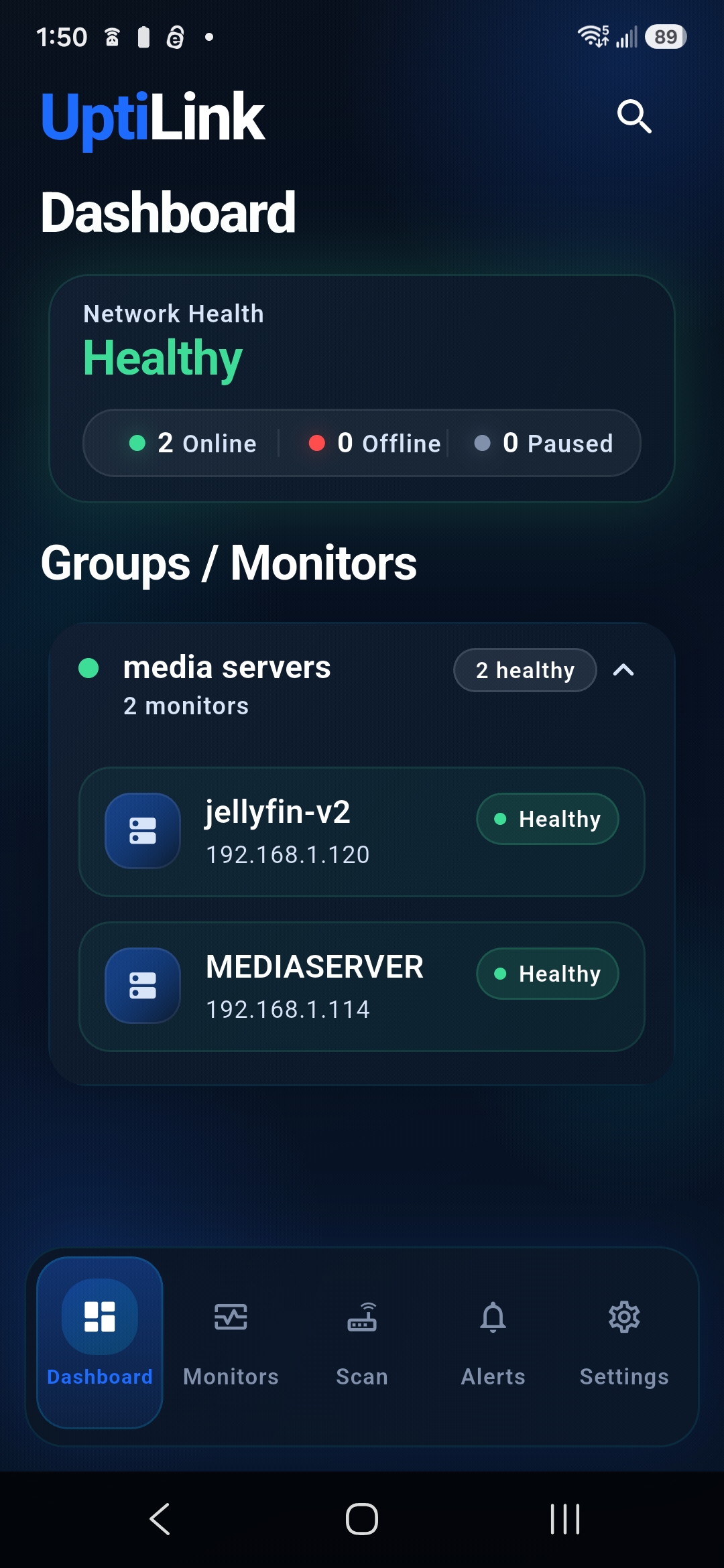
Complete the wizard and inspect the dashboard. Confirm that each selected device has the expected name, address, group, and current availability. Your first Android-native network monitoring setup is now active.
Give the initial checks time to settle before investigating a device that appears offline, then compare the address with your router records if the result is unexpected.
Which devices can you monitor?
UptiLink is suited to devices that stay on the LAN and respond consistently to reachability checks. Common choices include routers, network-attached storage, Raspberry Pi systems, wireless access points, printers, servers, switches, smart-home hubs, and other infrastructure with a stable address.
- Router uptime monitoring: watch the gateway that connects the rest of the network.
- NAS monitoring: check whether a Synology, QNAP, TrueNAS, or other storage device remains reachable.
- Raspberry Pi monitoring: follow small systems running DNS, home automation, media, or utility services.
- Server availability monitoring: track local physical hosts, mini PCs, and lab servers.
- Home and small IT shop monitoring: keep important network infrastructure visible without adding another server.
A stable DHCP reservation or static address helps a monitor continue pointing at the same device. UptiLink checks network reachability; it is not a traffic analyzer, application performance platform, or guarantee that every service on a reachable device is healthy.
How UptiLink fits with Uptime Kuma and UptimeRobot
People searching for an Uptime Kuma alternative for Android or an UptimeRobot alternative for local devices are often trying to solve a simpler problem: “Can my phone tell me whether this LAN device is reachable?” UptiLink focuses on that Android-based local workflow.
Uptime Kuma is a capable self-hosted platform with broader monitor types and dashboards, but it normally needs an always-on host or container. UptimeRobot is a hosted service designed primarily to check targets reachable from the public internet. Those approaches can be excellent when their architecture fits.
UptiLink complements these tools. It offers network monitoring without a server for straightforward local reachability checks, Wi-Fi-aware groups, and alerts on Android. It is not presented as a replacement for every server-based or cloud monitoring platform. Use a fixed monitoring service when you need continuous checks while your phone is away, public endpoint monitoring, advanced protocols, or centralized multi-user operations.
Troubleshooting setup
The network scan finds no devices
Confirm the phone is connected to the intended Wi-Fi, not cellular data or a guest network. Router client isolation, VLAN rules, VPN routing, and device firewalls can prevent local discovery. Try adding a known address manually.
A selected device appears offline
Verify its address has not changed and that it responds to network reachability checks. Reserve the address in DHCP when practical. Sleeping and battery-powered devices may intentionally stop responding.
Wi-Fi detection does not work
Review UptiLink permissions in Android Settings, confirm the requested Wi-Fi/location access is enabled, and check that the device's system location setting meets Android's requirements for Wi-Fi identification.
Notifications do not arrive
Confirm UptiLink notifications are allowed and reliable alerts are enabled. Review Android battery optimization or background restrictions for the app. Manufacturer-specific power controls can affect scheduled monitoring.
Frequently asked questions
Does UptiLink require a monitoring server?
No. UptiLink performs simple network reachability monitoring from the Android device, so a dedicated monitoring server is not required.
Why does UptiLink request location permission for Wi-Fi detection?
Android controls access to Wi-Fi network information through operating-system permissions that can include location access. UptiLink uses the network context to run monitors only on the selected Wi-Fi network.
Can UptiLink monitor devices away from the selected Wi-Fi network?
Wi-Fi-aware monitors are intended to run while the Android device is connected to their selected local network. UptiLink is not a hosted remote monitoring service.
What can UptiLink monitor?
UptiLink can check the reachability of responding LAN devices such as routers, NAS systems, Raspberry Pi computers, access points, printers, switches, servers, and smart-home hubs.
Is UptiLink a replacement for Uptime Kuma or UptimeRobot?
UptiLink is a lightweight Android-native option for simple local device reachability monitoring. Server-based or hosted tools may be more suitable for public service checks, advanced protocols, dashboards, and continuous monitoring from a fixed location.
UptiLink makes local device visibility convenient from Android. Monitoring depends on the Android device being available, connected to the relevant network, and permitted to run background work. For critical or regulated infrastructure, use a monitoring design appropriate to its operational requirements.
Explore UptiLink for Android.
Review the full feature set, screenshots, FAQs, and Google Play download link on the UptiLink homepage.
Visit the UptiLink homepage